Navigator
This guide covers
- What Navigator is for
- The conveyance panel: Railcars, Vessels and Trucks
- The map
- On-time performance
- Quick filters
- The shipment list, column by column
- Reading the Latest update column
- Comments
- Documents
What is Navigator?
Navigator is your single view of cargo in motion. Rather than opening one shipment at a time, it puts every shipment across all of your trades on one screen — on a map, in a performance summary, and in a list you can filter, sort and export.
Use it to answer the questions you get asked most often:
- Where is my cargo right now, and when will it arrive?
- Which shipments are running late, and by how much?
- Has this shipment got the documents it needs?
- What has my counterparty said about this cargo?
Navigator shows shipments across conveyances — vessel, rail and truck — in one place. For a single shipment's full detail, open it from the list. Check out Finding a shipment for more details.
The conveyance panel
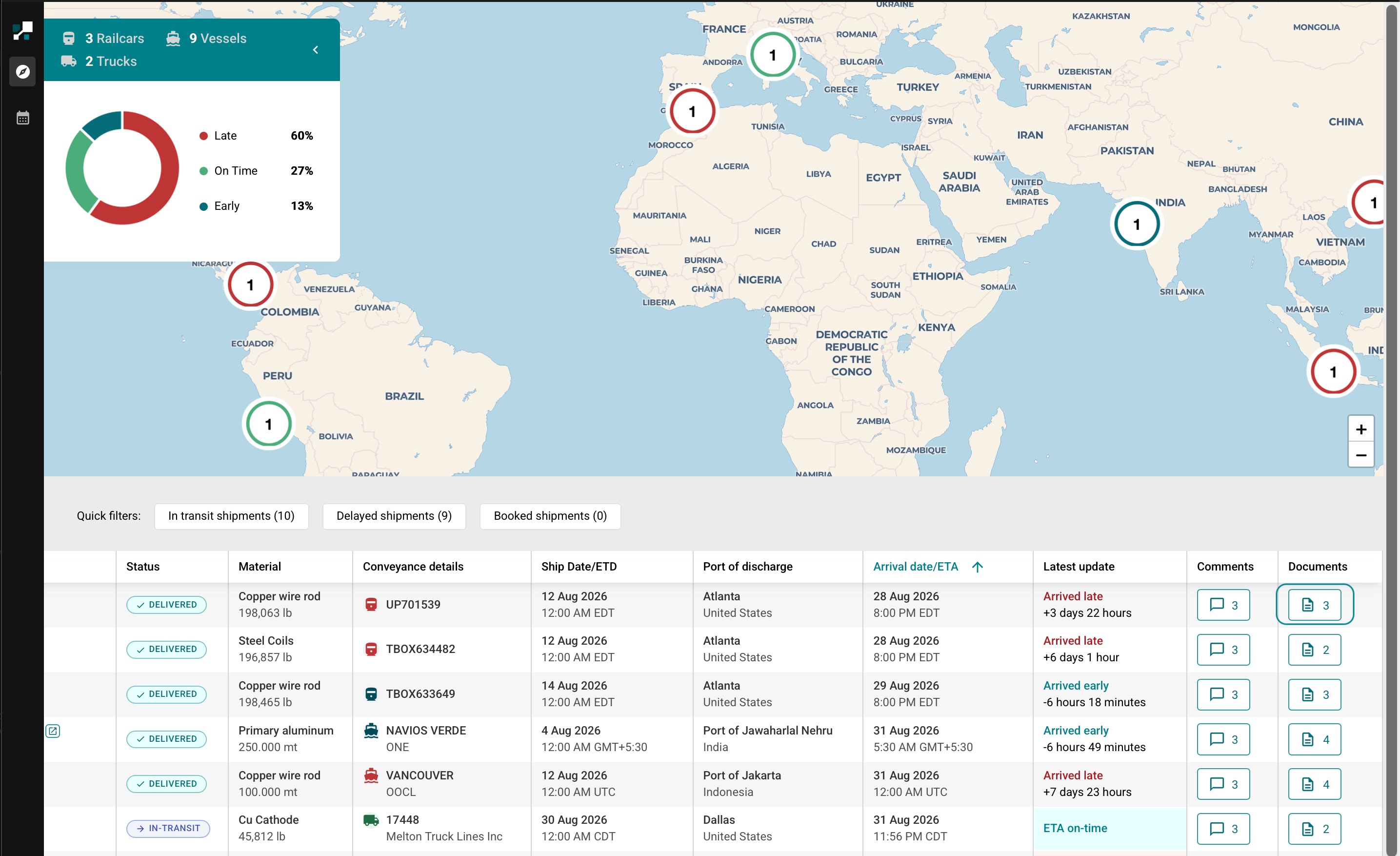
Top left of the map you'll see a count of the conveyances currently carrying your cargo, for example 3 Railcars · 9 Vessels · 2 Trucks.
- Select a conveyance type to narrow the map and the list to just those shipments.
- When a selection is active, a Shipment on selected conveyances chip appears above the list. Use Clear All Filters to remove it.
- You can step through conveyances one at a time — the panel shows your position, for example 1 of 9 Vessels — and Restart returns you to the beginning.
Everything else on the page responds to your selection, including the performance summary. Selecting a single on-time vessel will show On Time 100%.
The map
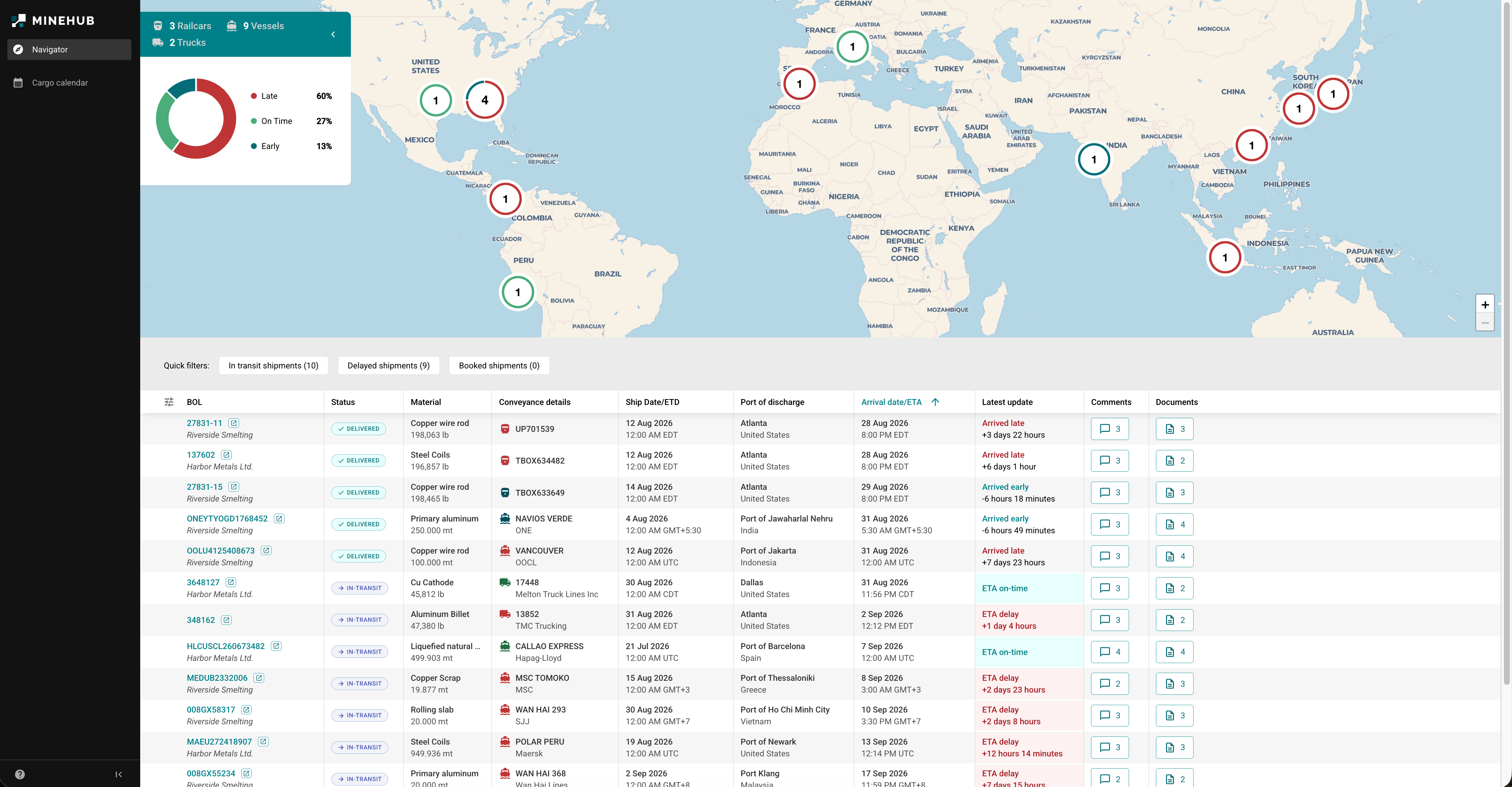
The map plots every tracked shipment.
Pins cluster by area and show the number of shipments in that cluster. Zoom in with + to break a cluster apart.
Pin colour reflects timeliness — red for late, green for on time or early — so you can see where your problems are before reading a single row.
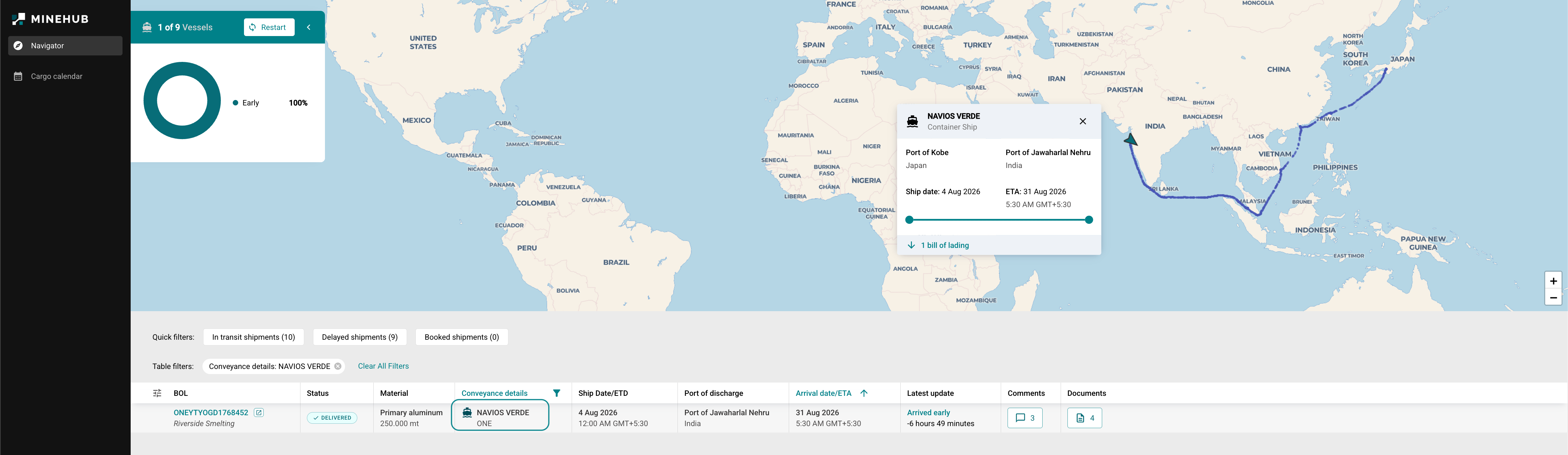
Select a vessel to open its detail card, which shows:
- Vessel name and ship type
- Port of loading and port of discharge, with countries
- Ship date and ETA, with time zone
- A progress bar showing how far along the voyage is
- How many bills of lading are on that conveyance — one vessel often carries several of your BOLs
If a shipment isn't appearing on the map, it may not be tracking. See Shipment Tracking & ETAs for the list of fields a shipment needs before tracking can start.
On-time performance
The doughnut summarises the timeliness of the shipments currently in view, split into Late, On Time and Early.
Two things worth knowing:
- It recalculates with your filters. The figure describes the shipments on screen, not your account as a whole. Filter to one conveyance or one quick filter and the percentages change.
- It counts shipments, not tonnes or value. A truck running twelve minutes behind and a vessel running eight days behind each count once.
Timeliness is measured against the shipment's ETA — for arrived shipments, against the ETA that was in place when they arrived. It is a measure of how the journey went, not of who caused it.
Quick filters
Above the list:
- In transit shipments — everything currently moving
- Delayed shipments — everything showing a delay or that arrived late
- Booked shipments — booked but not yet shipped
Each carries a count. Select one to filter the list and the map together; select it again to clear.
The shipment list
| Column | What it shows |
|---|---|
| BOL | The bill of lading number, with the counterparty beneath it. Select it to open the shipment. |
| Status | BOOKED, IN-TRANSIT, DELIVERED |
| Material | The material and its weight, in the unit it was declared in (lb or mt) |
| Conveyance details | Vessel, railcar or truck identifier, with the carrier beneath. The icon shows the mode. |
| Ship Date/ETD | Departure date and time, in the time zone of the load port |
| Port of discharge | Destination, with country |
| Arrival date/ETA | Actual arrival for delivered shipments, ETA for everything else. Selectable to sort. |
| Latest update | Timeliness — see below |
| Comments | Number of comments on the shipment |
| Documents | Number of documents attached |
Use the column settings icon at the top left of the list to add, remove and reorder columns. Your layout carries through to your export.
Times are shown in the local time zone of the port, not yours. Two shipments arriving "26 Sep 7:00 PM CDT" and "2 Oct 5:30 AM GMT+5:30" are not as far apart as they look.
Reading the Latest update column
This is the column customers ask about most, so it's worth knowing exactly what each value means.
| Value | Meaning |
|---|---|
| ETA on-time | In transit and expected to arrive as planned |
ETA delay +2 days 8 hours | In transit, and now expected to arrive later than originally planned, by the amount shown |
Arrived late +3 days 22 hours | Delivered, later than the ETA, by the amount shown |
Arrived early -6 hours 18 minutes | Delivered ahead of the ETA, by the amount shown |
A delay is a change against the previous expectation. A shipment showing
ETA delay +12 hours 14 minutes and one showing ETA delay +7 days 15 hours both
appear simply as "delayed" in the quick filter and both count once in the performance
summary — so read the variance, not just the label.
Comments
Comments are attached to a BOL and are shared with your counterparties.
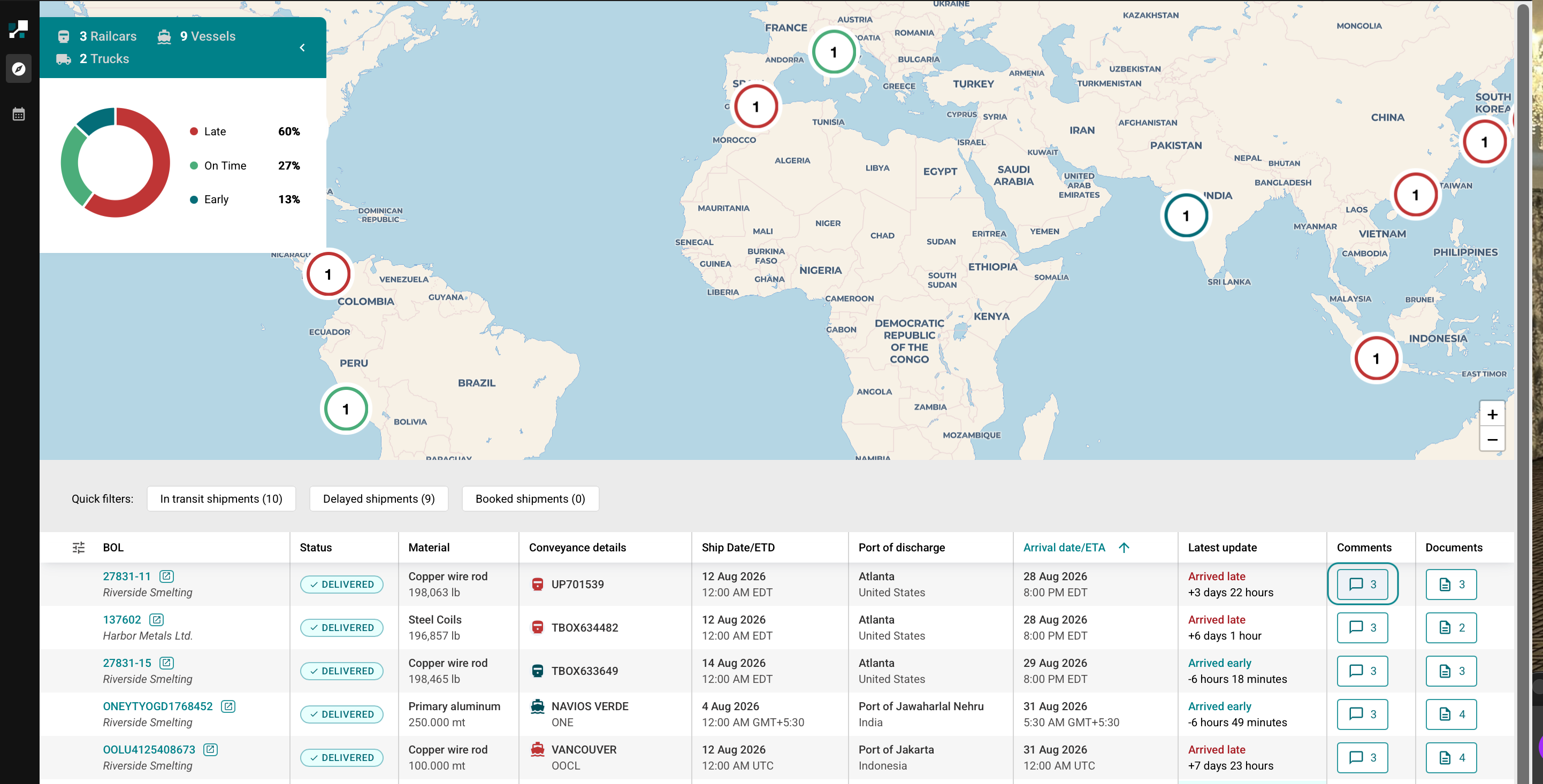
- Open the comments panel from the Comments column.
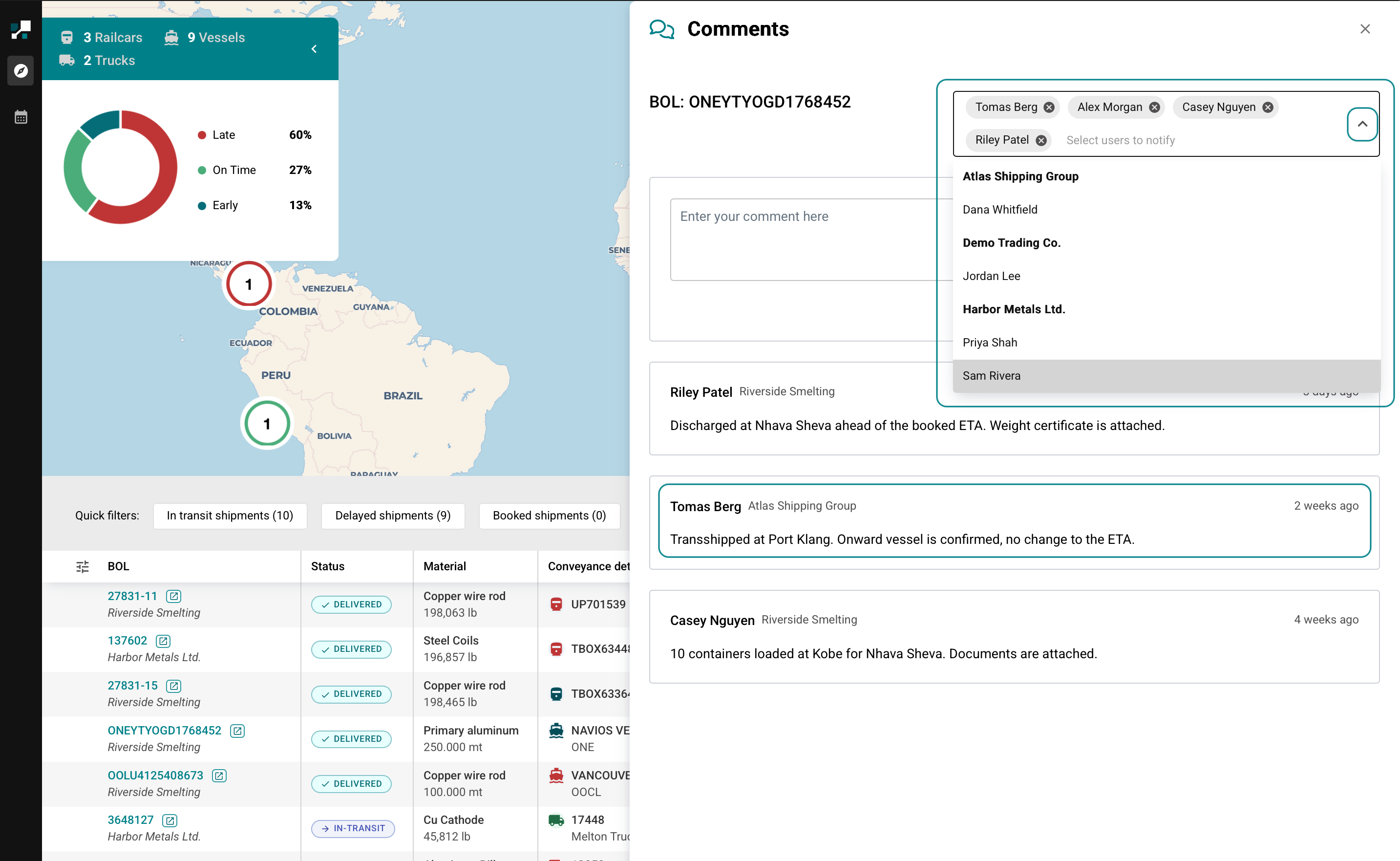
- Choose who to notify using the user selector. Users are grouped by company, so you can see whether you're notifying your own colleagues or the counterparty.
- Only the users you select are notified. Everyone with access to the shipment can still read the thread.
- Each comment shows the author, their company and when it was posted.
Comments are the fastest way to capture something that isn't in the data — a scale house reading, a railcar release, a dwell explanation. If it matters and it isn't a field, put it in a comment on the BOL.
Documents
Documents are attached to a BOL and listed with the most recent first.
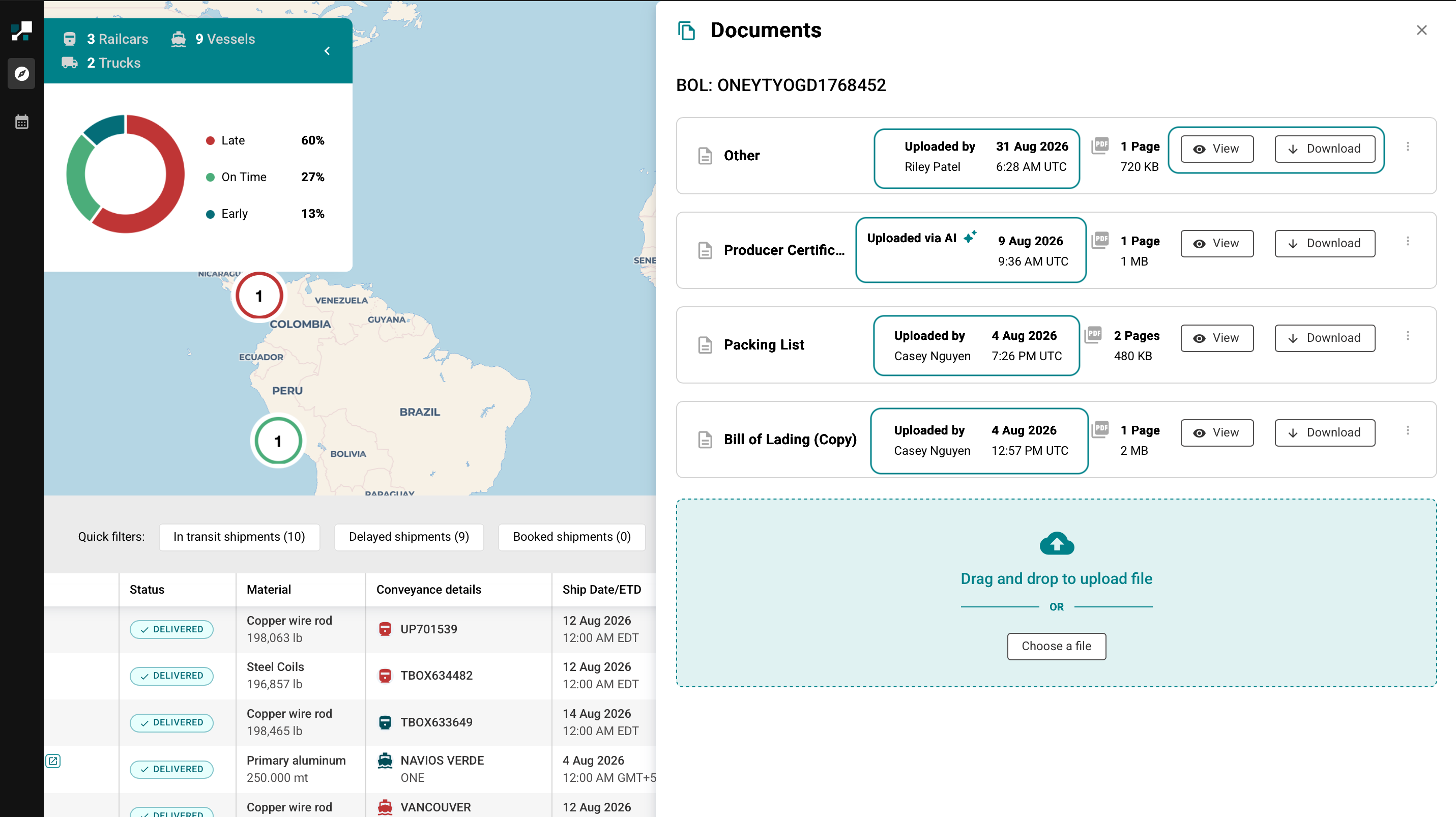
Each entry shows:
- Document type — for example Bill of Lading, Producer Certificate of Analysis,
or
Otherwhen no type was set - Who uploaded it, or Uploaded via AI where MineHub captured it automatically
- Upload date and time in UTC, page count and file size
- View and Download
To add a document, drag and drop it into the upload area or select Choose a file.
A document filed as Other can't be found by type, and a document titled unclearly
can't be identified without opening it. Set the type when you upload, and name the
file so anyone can tell what it is.
For the full document workflow, including document types, see Uploading & Managing Existing Documents on Shipment.